My app · 9/30
Publish and share your app
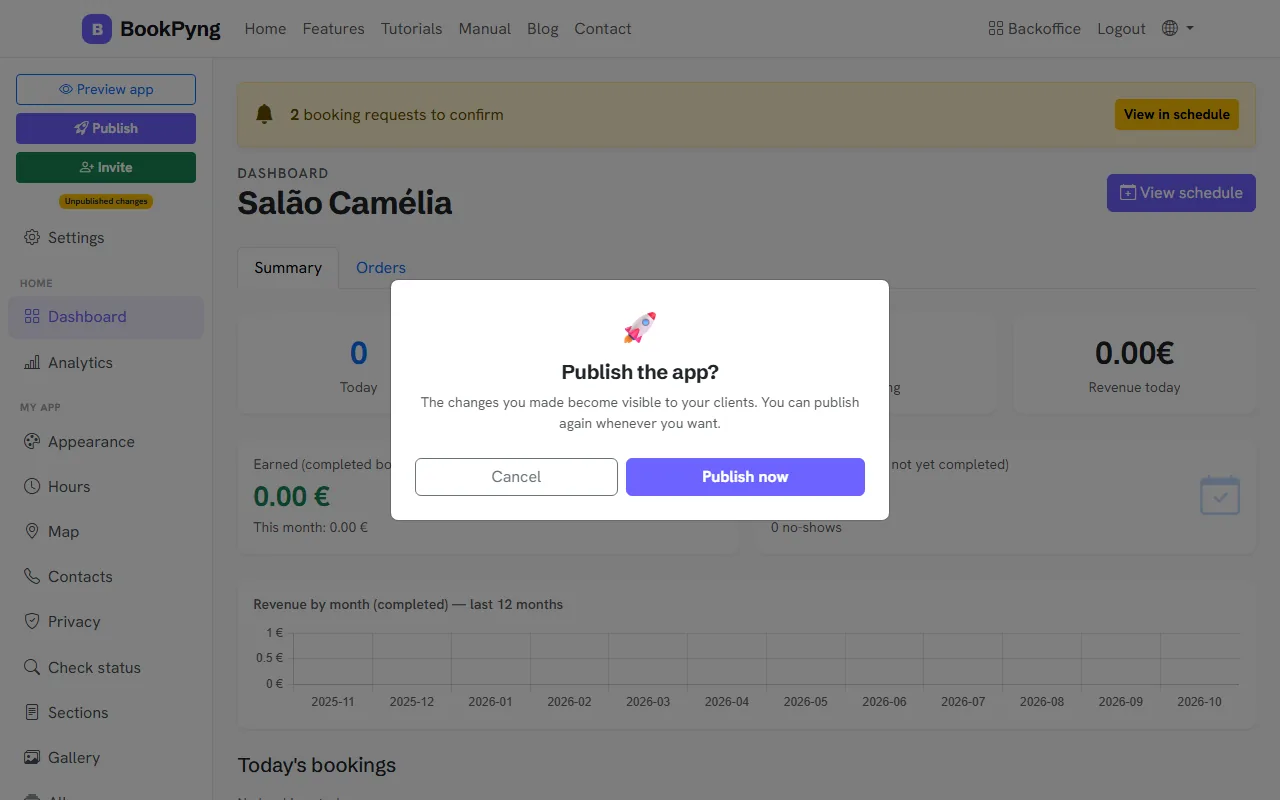
Until you publish, the app is a draft only you can see. Publishing makes it visible to customers; you can publish again whenever you change something.
Step by step
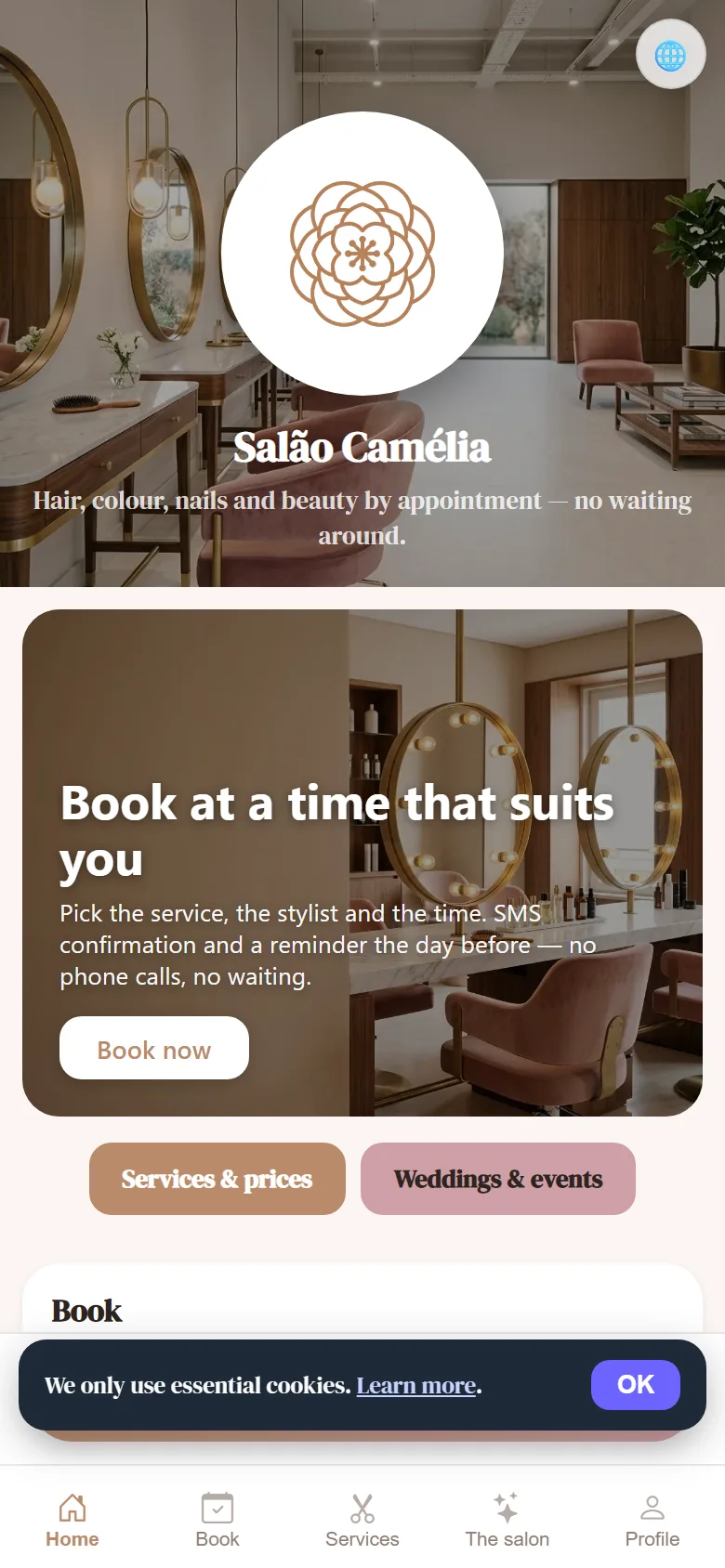
- Press Preview app to see the draft on a phone.
- Press Publish and confirm with Publish now. The status becomes “Published”; if you change something later you will see “Unpublished changes”.
- Share the install link (in Appearance, next to Open app): customers open it and install the app on their phone.
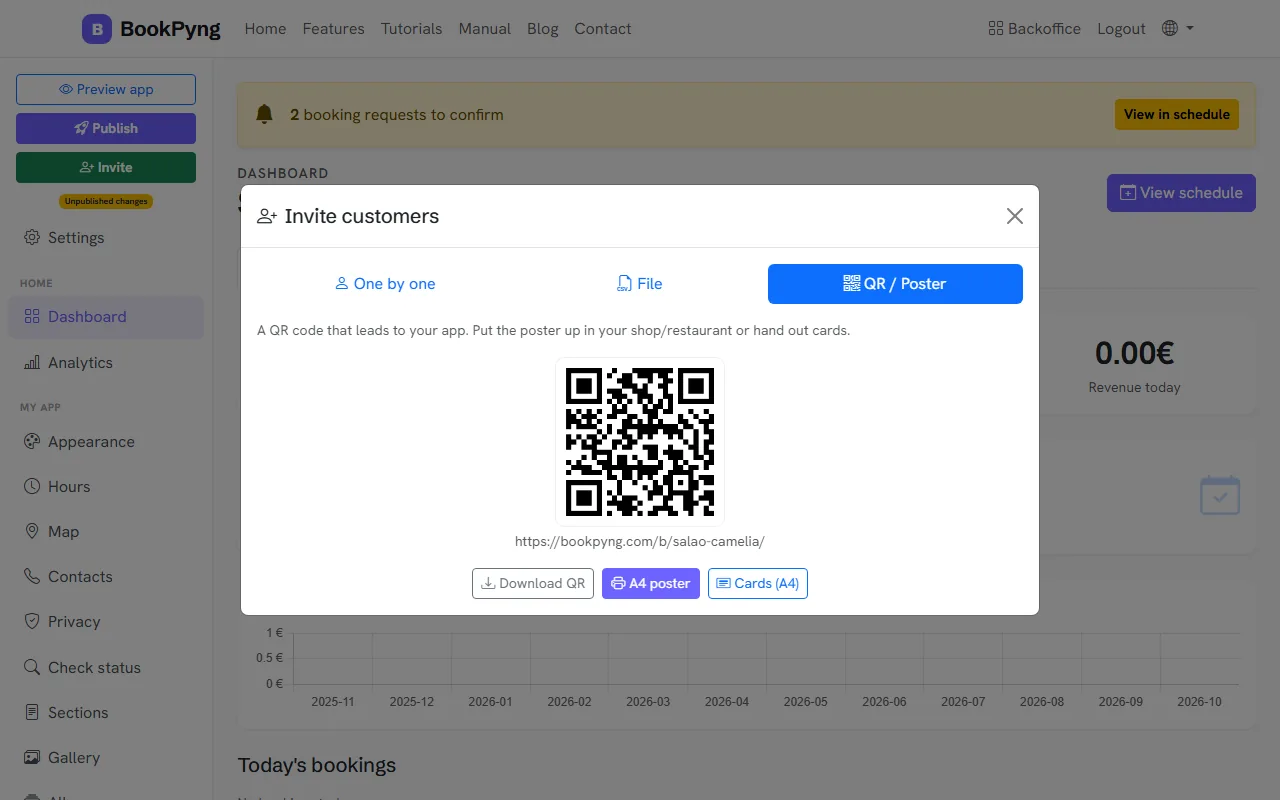
- Press Invite for more ways to reach customers: a One by one invitation by WhatsApp, SMS or email, importing a CSV/Excel File, or QR / Poster.
- On the QR tab, download the code, print the A4 poster or the cards and put them on your counter.
Heads up
You cannot publish before you confirm your account email.
Ready to have your own app? Create an account and get 14 days with everything unlocked.
Create my app