My app · 5/30
Appearance: theme, identity and menu
In Appearance (the “App Builder”) you decide how the app looks and how people move around it. Changes stay in draft until you press Publish.
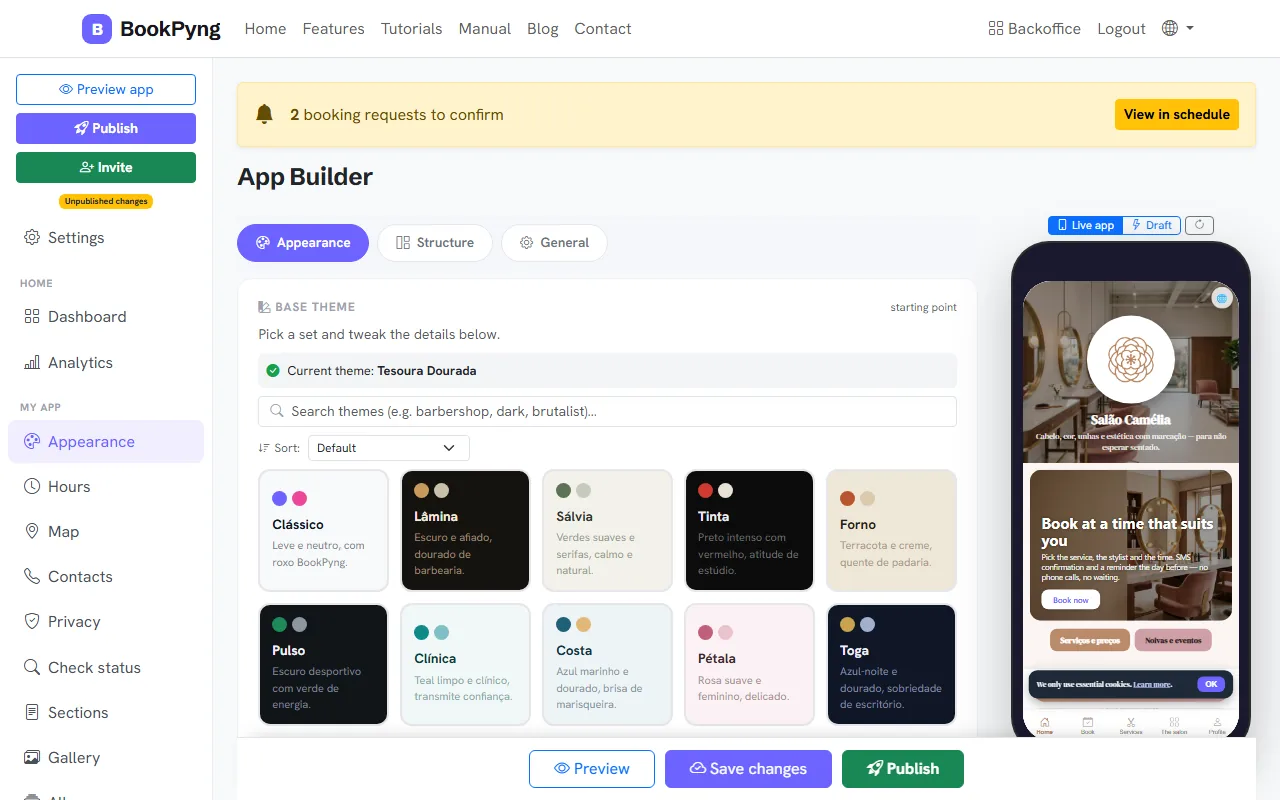
Step by step
- Choose the Base theme: it is the starting point for colours and structure. You can preview another theme before saving.
- Under Identity, set the App name (max. 30 characters) and the Short icon name (max. 12 — it appears under the icon on the phone).
- Choose how services are presented: a single list with category headings, or a category menu.
- Choose the Menu style (how customers navigate): tabs at the bottom, a grid of buttons, or whatever the theme defines.
- Turn the Launch screen (splash) on or off and pick the backgrounds for the splash, the icon and the logo.
- Under Effects & animations, pick a background effect (balloons, marquee, neon, aurora…). It applies on top of any theme.
- Save and use Preview app to see the draft.
Tips
- The Structure tab composes up to 3 middle positions of the bottom bar; each one can be a section or a group that opens a menu.
- This is also where you choose which sections appear on the home page and in what order.
Ready to have your own app? Create an account and get 14 days with everything unlocked.
Create my app