Clients · 23/30
Clients, groups and invitations
Everyone who books is added to your client list, with visit history, notes and groups.
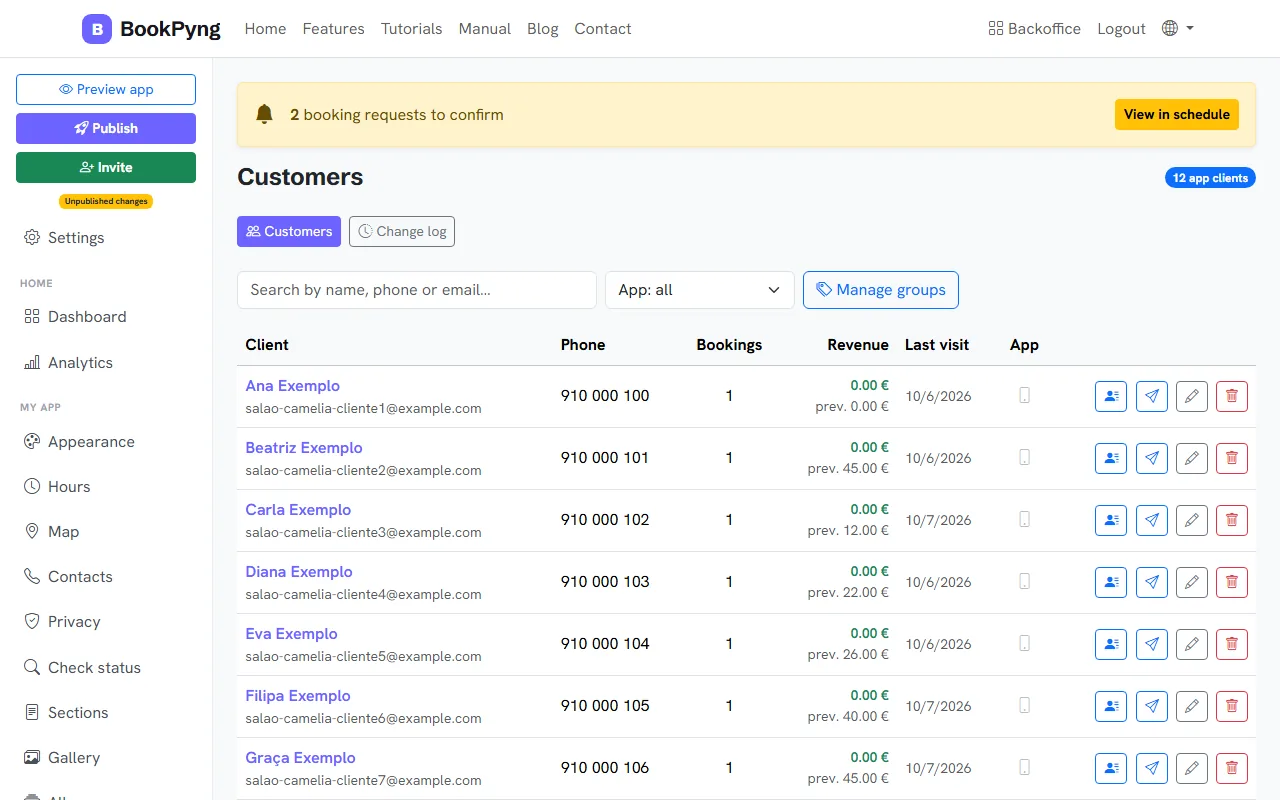
Step by step
- Open Customers. You see mobile, bookings, revenue, last visit and whether they have the app installed.
- Filter by App: all, With app installed or Without app installed.
- Click a client to edit: name, mobile, email, Date of birth, Notes, Preferences and Groups.
- In Manage groups, create groups (for example VIP) and assign them to clients.
- To bring clients into the app, use Invite (see “Publish and share”), or Send app link to one client.
Tips
- The Change log shows what changed on each client: field, before, after and date.
- Deleting a client cancels their pending bookings and cannot be undone.
Ready to have your own app? Create an account and get 14 days with everything unlocked.
Create my app